


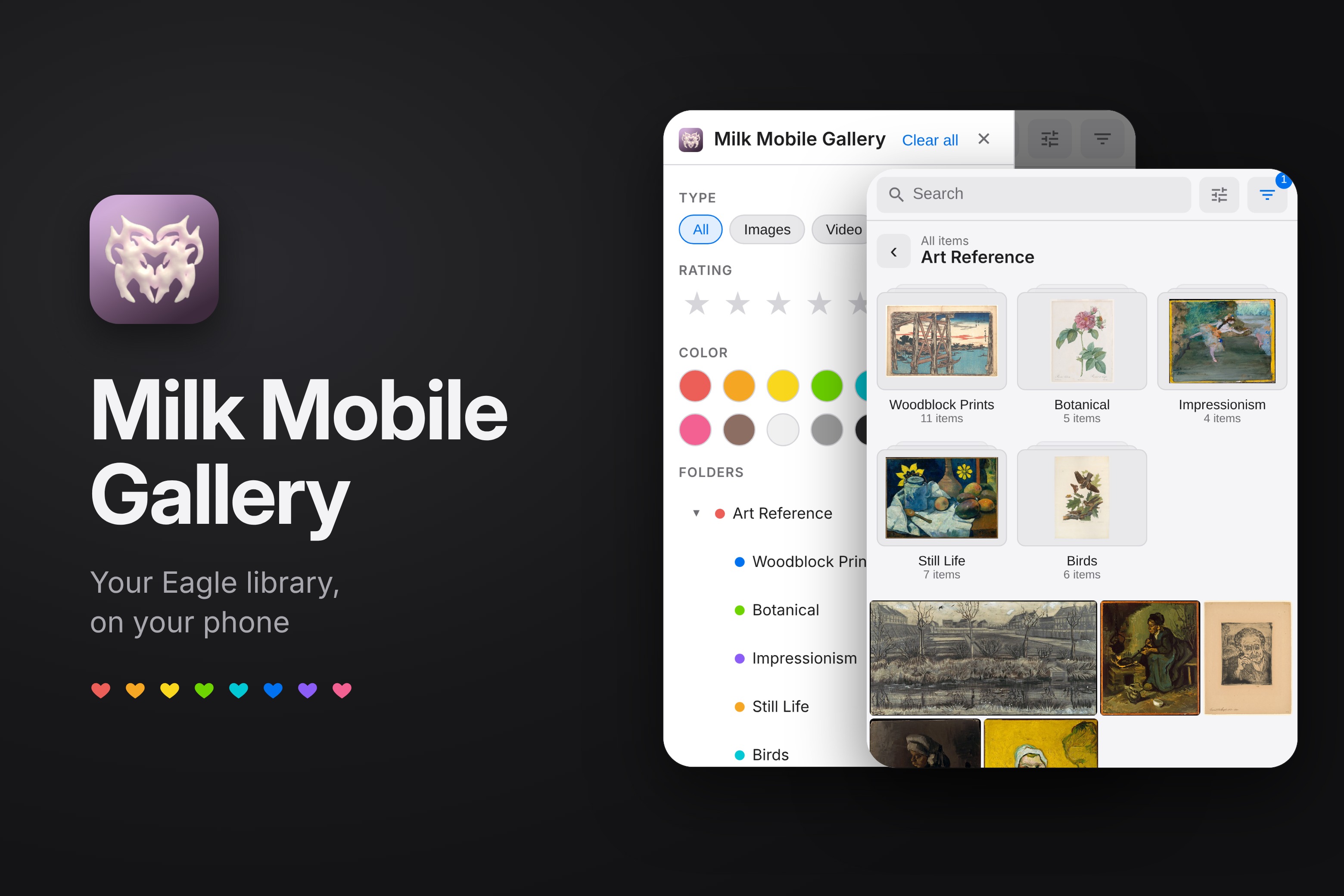
for as long as i’ve been doing art, i’ve been trying to figure out a good reference and asset management solution. i’m really into moodboards and ideating. i started out gridding and arranging my images in photoshop, then started using vizref, then switched to pinterest, then got locked out of my pinterest several times mid-project for ominous unexplained community violations, then tried using my zettelkasten to organize my references and all of my many 3d assets and plugins for content creation and filmmaking, which ate up my entire obsidian cloud budget in about 2 notes.
this year i discovered eagle asset manager and it’s great. the interface is awesome, i love how i’m able to organize and tag and subtag and color code all of my assets.
i love doing plein airs and working on the go. sometimes i even just like drawing on my porch. for some reason i find it a lot easier to do art for fun outside of my office/studio. lately my focus has been modeling assets that are going to ship with our app, ünflat, and the cool thing is that i get to do it from the app, so i’m not chained to my desk right now.
the one thing i felt was missing from eagle is the ability to take at least some of my refs on the go. i did search the marketplace and wasn’t really able to find a viable solution that was currently supported or worked. so, i built milk mobile gallery and thought i’d share it with the community, in case someone else finds it useful.
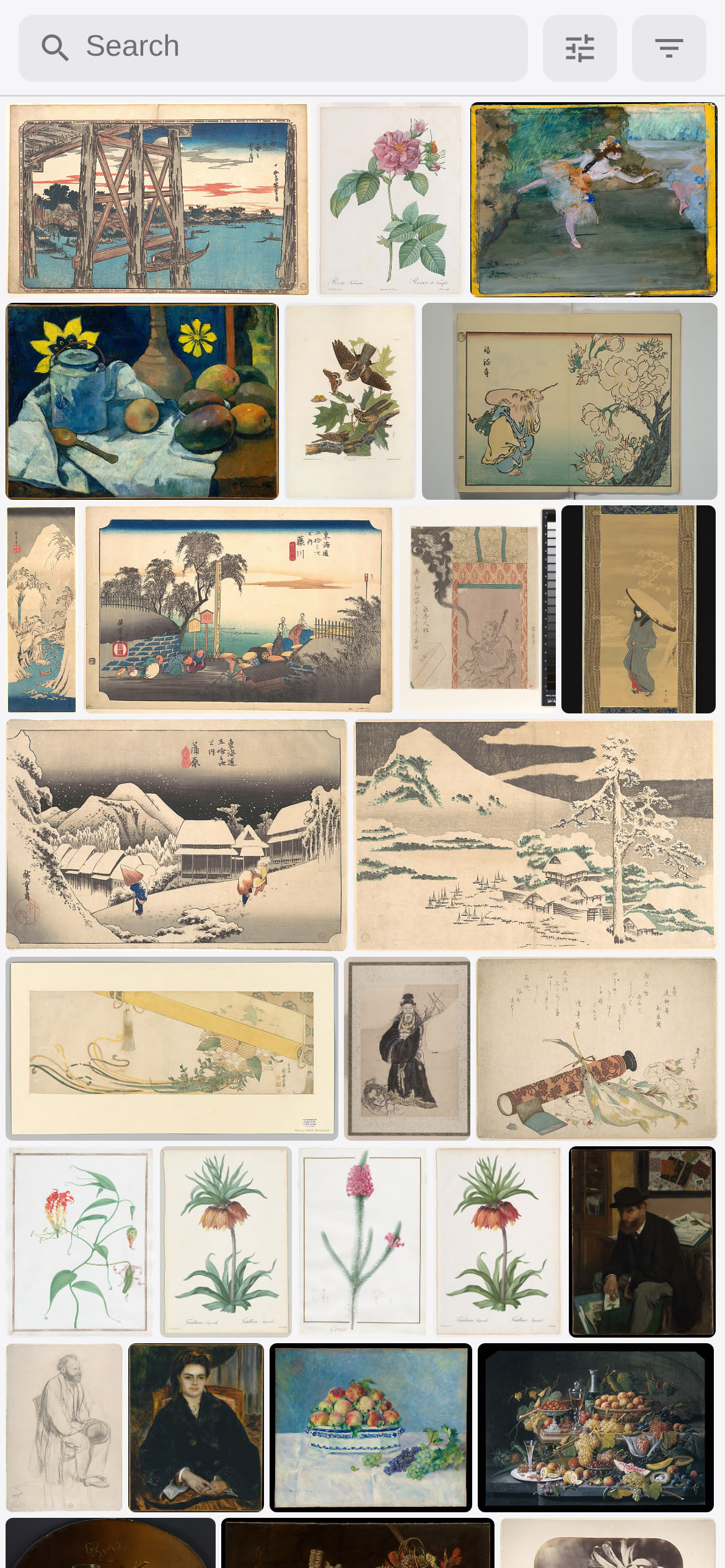
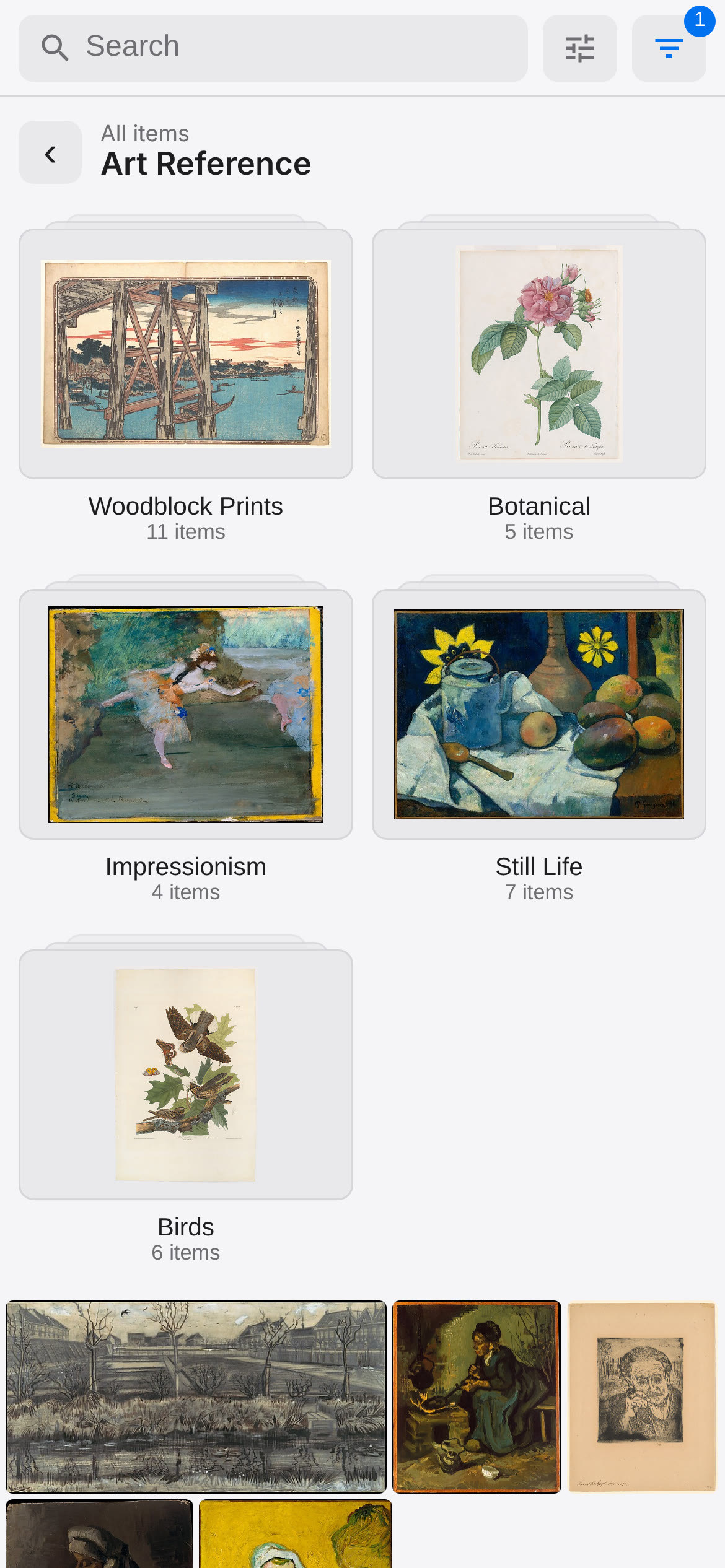
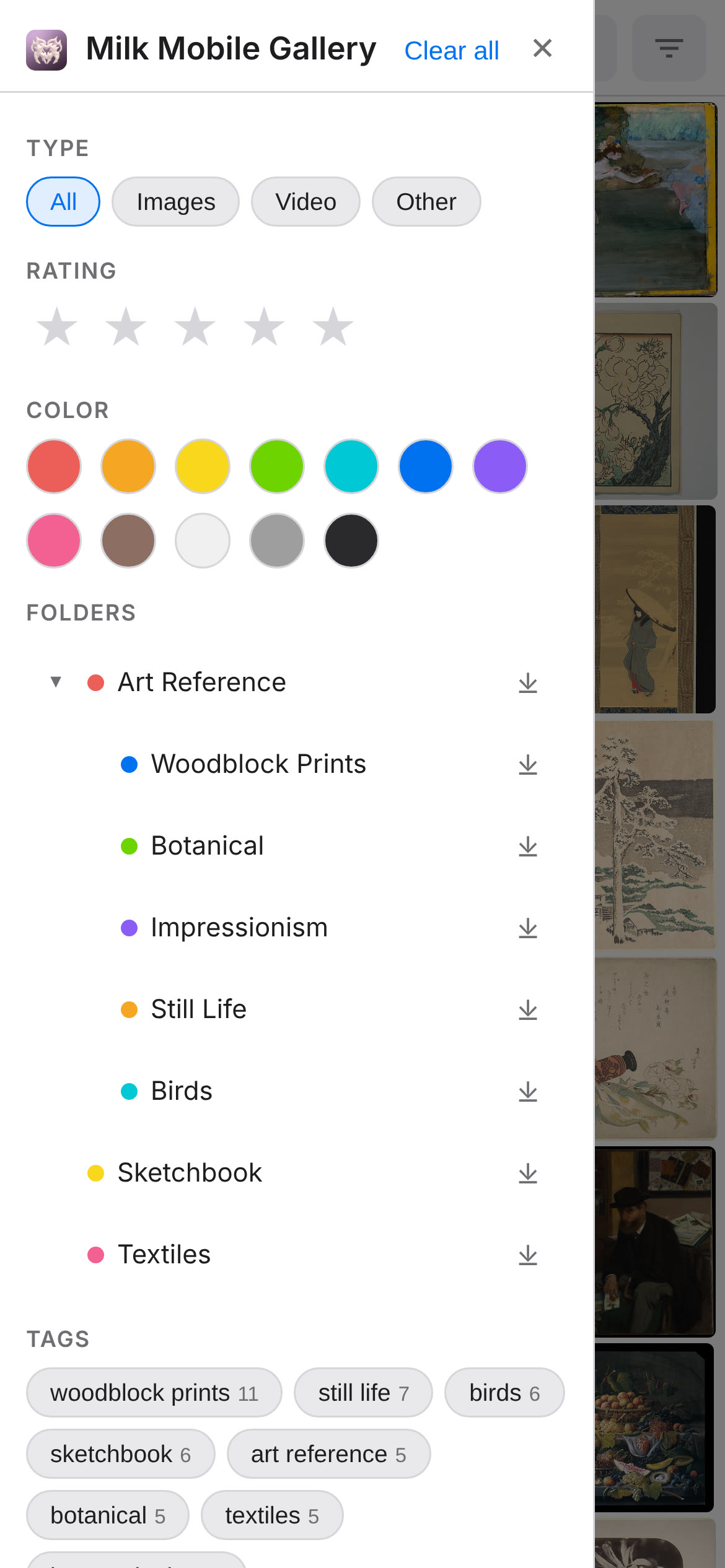
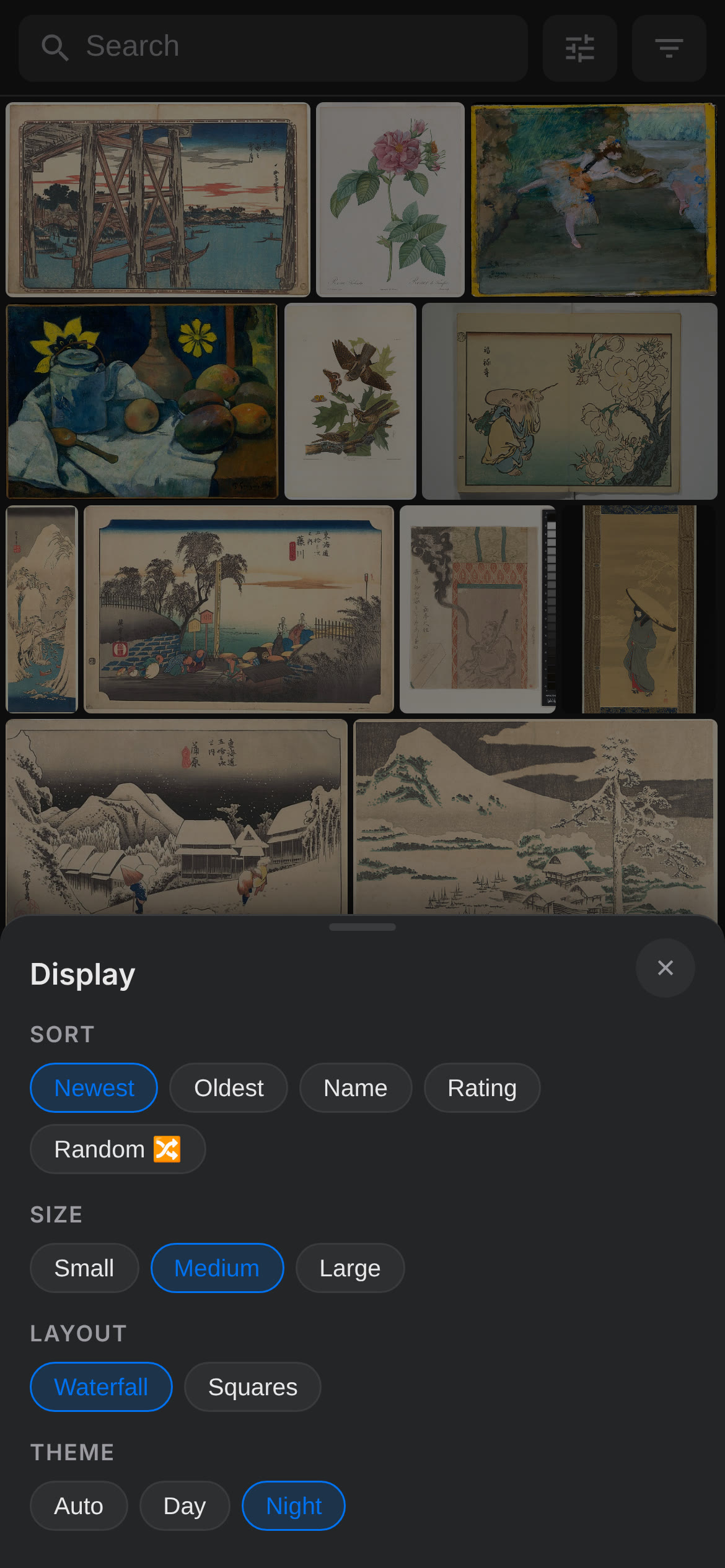
milk mobile gallery is a background service plugin for eagle. it’s a little node server that streams thumbnails and original files from your home disk to a js web app on your phone (which you can add to your home screen, so it behaves just like a normal app). it has a grid gallery, filters and sorting via folders and tags, folder tiles so you can tap into nested folders like you do in eagle, and a pinch-zoom viewer. nothing is shared until you turn sharing on, and each phone has to pair with a code from your computer before it can see anything. you’re able to get offline support by installing the plugin’s certificate on your device, so you can back up any folders you need when you’re not on your home network and access them whenever and however you want. it works on mac and windows.
requirements
- eagle 4.0 (build 12 or newer) on your computer
- any phone with a modern browser, on the same network
- mac or windows
install
soon there will be a link here where you can get the plugin straight from the eagle marketplace. but until they approve my listing:
- download MilkMobileGallery.eagleplugin.
- double-click the downloaded file. eagle opens and asks to install the plugin. confirm.
- if double-clicking does not work, open eagle and drag the file onto the eagle window.
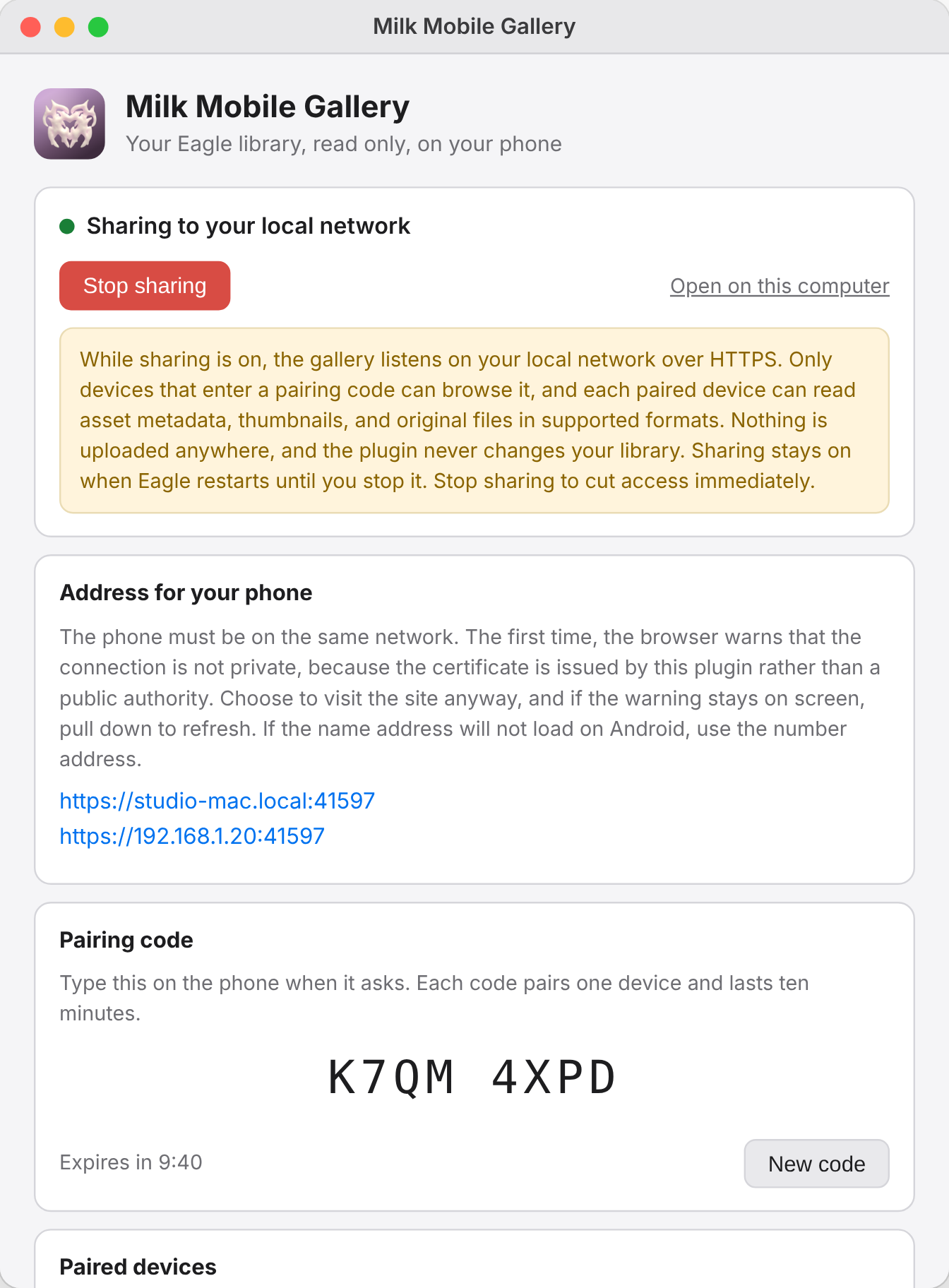
- open the plugin window (eagle → plugin menu → milk mobile gallery) and press start sharing. the window shows the address to open on your phone, for example
https://your-computer.local:41597, and a pairing code.
use it
- on your phone, open the address from the plugin window. the phone must be on the same network as the computer.
- the first time, your browser will warn you that the connection isn’t private. that’s expected, because the certificate comes from the plugin instead of a public authority. choose to visit the site anyway (if the warning stays on screen, pull down to refresh).
- type in the pairing code. each code pairs one phone, so press new code in the plugin window for the next one.
- tap the sliders icon for sorting, grid size, layout, and day or night theme. tap the filter icon for folders, tags, rating, type, and color. open a folder to see its subfolders as tiles.
keep folders on your phone
saved folders stay browsable when the computer is off or you are away from home. this step is also what lets you open the gallery from a home screen icon.
- on your phone, open
/setupon the gallery address. it explains what trusting the plugin’s certificate means and walks you through installing it. this is a one-time step and is required by phone browsers for offline storage. on iphone, don’t miss the last switch under settings → general → about → certificate trust settings. - reload the gallery, then add it to your home screen for an app icon.
- in the filter drawer, tap the arrow next to any folder to save it. saved folders appear under “on this phone” with update and remove controls.
note: deleting the home screen icon deletes the saved folders on that phone.
good to know
- read only. the plugin never changes your library.
- no account, no cloud, no tracking. everything stays on your network.
- nothing is shared until you press start sharing, and only phones you’ve paired can see your library. you can remove a phone or stop sharing from the plugin window at any time. sharing stays on when eagle restarts until you stop it, so use it on networks you trust.